If you are managing a local business online, your Google Business Profile (GBP) is your most valuable asset. But what happens when you need to contact Google Support, appeal a suspension, or connect your profile to a third-party software? You are going to need your Google Business Profile ID.
Google assigns a unique string of numbers to every listing, acting as your profile's digital fingerprint. Because Google has moved profile management directly into the Search Engine Results Page (SERP), finding this ID can be a little tricky if you don't know exactly where to look.
Whether you are managing your own listing or working with a Google Business Profile Expert to optimize your local presence, knowing how to locate your Business Profile ID is essential. Here is a quick, step-by-step guide to finding it in just a few clicks.
Step 1: Log in to the Correct Google Account
First, ensure you are logged into the exact Gmail or Google Workspace account that has ownership or management access to your Google Business Profile. If you are logged into a personal email by mistake, you won't be able to access the backend settings.
Step 2: Access the Business Profile Manager
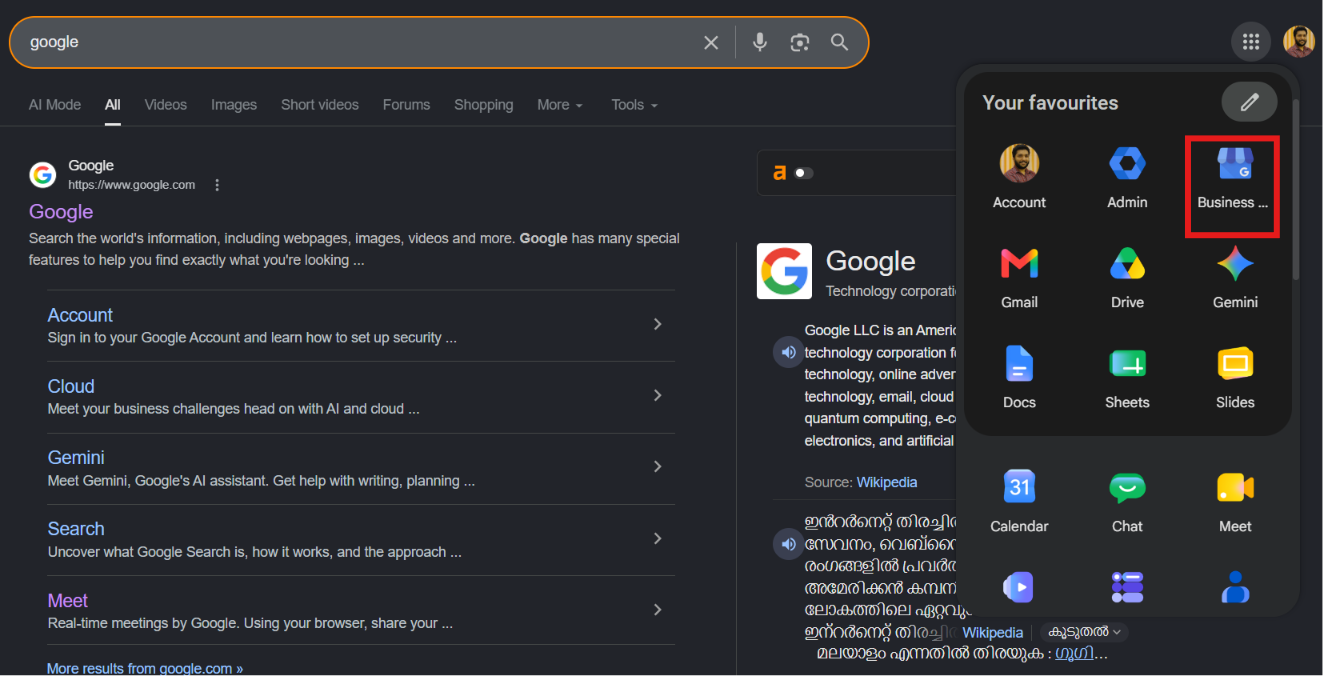
Once logged in, look to the top right corner of your Google homepage or Gmail inbox. Click on the 9-dot menu (Google Apps) and select the Business Profile icon (it looks like a little blue storefront awning).
Alternatively, you can simply go to Google Search and type “my business.”
Note: If you manage multiple profiles, you will be taken to a list of your accounts. Select the specific business location you want to manage.
Step 3: Open the Business Profile Menu
Once you select your business, you will be redirected directly to Google Search, where a special dashboard view will appear at the top of the SERP. This dashboard is private and only visible to authorized profile managers.
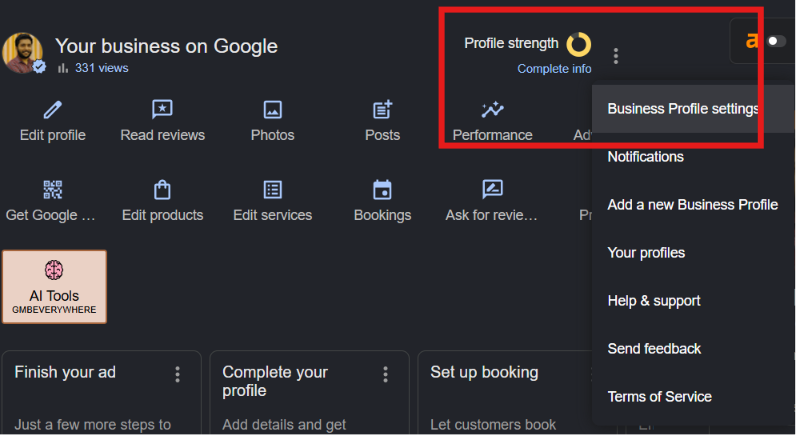
Look to the right side of this dashboard, just above the profile metrics, and click on the three vertical dots to open the profile menu.
Step 4: Navigate to Business Profile Settings
A dropdown menu will appear. Click on the very first option labeled Business Profile settings.
Step 5: Go to Advanced Settings to Find Your ID
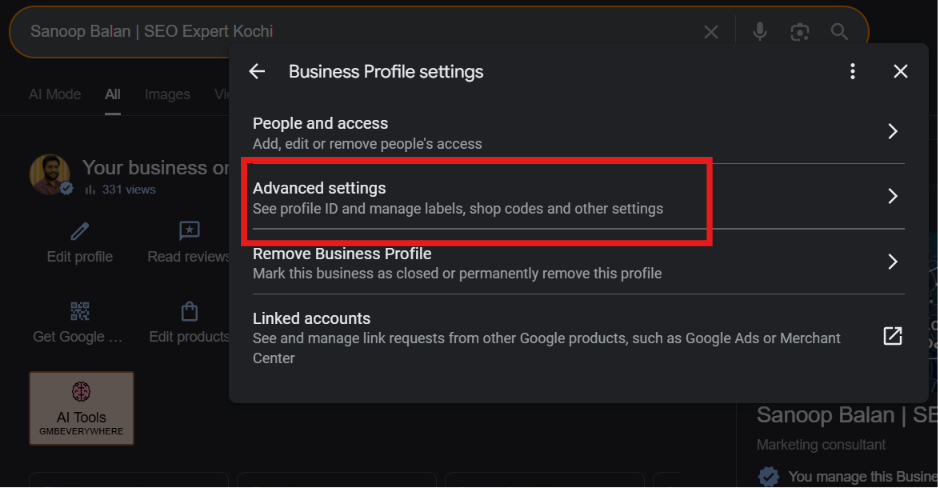
A new pop-up window will appear with several configuration options for your account. Click on Advanced settings.
Right at the very top of the Advanced Settings page, you will see your Business Profile ID consisting of a long string of numbers. Google even provides a handy "Copy ID" button right next to it so you can easily copy and paste it without making any typos.
Why Do You Need Your Google Business Profile ID?
You won't need this ID for day-to-day tasks like posting updates or replying to reviews, but it is critical for backend administrative tasks:
- Contacting Support: If you ever need to submit a ticket to Google regarding a bug, duplicate listing, or verification issue, support representatives will ask for this ID to locate your account quickly.
- Reinstatement Forms: If your profile gets suspended, you must provide your Profile ID when filling out the reinstatement appeal.
- Third-Party Integrations: Connecting your GBP to local SEO tools, automated review software, or analytics dashboards via API requires this unique identifier.
Take Control of Your Local SEO
Finding your ID is just the first step in mastering your local search presence. Keeping your profile optimized, securing top map pack rankings, and protecting your listing from suspensions requires ongoing work.
If you want to dominate local search without the daily hassle, consider partnering with a Google Business Profile Expert to handle the heavy lifting for you. Once you have your ID, you can learn how to post to all your Google locations in one click for free.