If you manage a local business, your Google Business Profile (GBP) is often where the first real customer interaction happens — long before someone lands on your website. People call you, ask for directions, or click through to your site straight from the search results and Google Maps. The problem? By default, all of that activity lives inside the Business Profile dashboard, completely separate from the rest of your analytics.
Linking your Google Business Profile to Google Analytics 4 (GA4) fixes that. Once connected, your profile interactions — calls, direction requests, website clicks, bookings, and messages — flow directly into GA4, so you can see your local presence and your website performance side by side in a single reporting view.
In this guide, I'll walk you through the entire process, exactly as it appears inside the GA4 interface, and then explain what to actually do with the data once it starts flowing in.
Why Bother Linking GBP to GA4?
Before the how, a quick word on the why — because this is one of those integrations that looks minor but changes how you understand your local performance.
When your Business Profile sits in isolation, you're forced to compare two dashboards manually and guess how they relate. After linking to GA4, you get a few concrete advantages:
- A unified view of the customer journey. You can finally see how profile interactions connect to website behavior. Someone who clicks "Website" from your profile becomes a trackable session in GA4, so the handoff from Maps to your site is no longer a black box.
- Profile interactions as real metrics. Calls, direction requests, website clicks, bookings, and messages appear inside GA4's reporting, where you can trend them over time, compare periods, and spot patterns.
- Better attribution for local SEO work. If you're actively optimizing your GBP — posts, photos, categories, or earning reviews — you can watch the downstream effect on interactions in the same tool you use to judge everything else.
- One source of truth. No more switching tabs and stitching numbers together in your head or a spreadsheet.
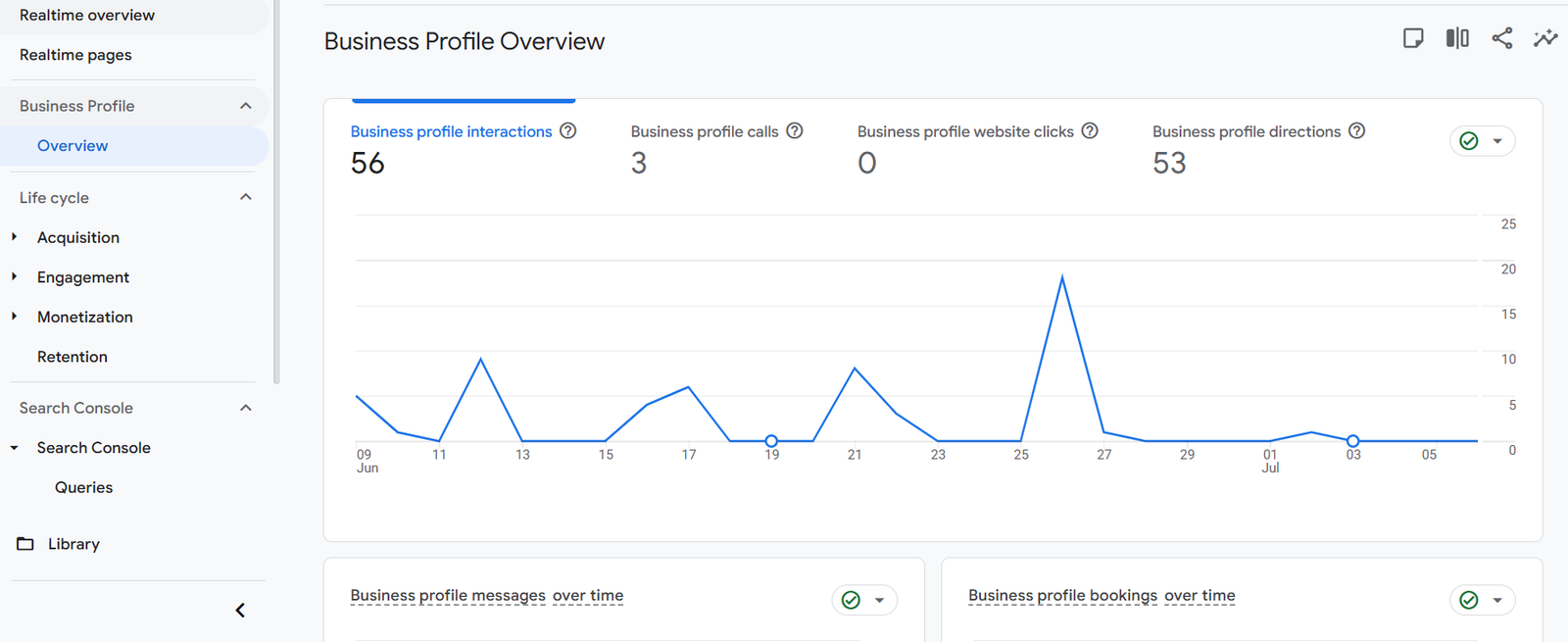
Here's what that Business Profile overview looks like inside GA4 once data starts populating — interactions, calls, website clicks, and direction requests all reporting natively:
(In my own property, for example, the profile logged 56 interactions, 3 calls, 0 website clicks, and 53 direction requests over the period — a classic local-services pattern where directions dominate.)
What You'll Need Before Starting
This is a short list, but each item matters. If you're missing any of these, the link won't complete.
- Manager access (or higher) to the Google Business Profile you want to link. You have to actually manage the listing, not just be able to see it.
- Editor or Administrator access to the GA4 property. Product links can only be created by users with sufficient permissions.
- The same Google account ideally used for both. If your GBP and GA4 sit under different Google accounts, make sure the account you're logged into can access both — otherwise the listing won't appear in the selection step.
- A GA4 property that's already collecting data. The link works on standard GA4 properties.
A quick note on that last point about accounts: both listings are managed and linked by the same Gmail account. That's the smoothest setup. If your profiles live elsewhere, sort out access first, then come back to this.
Step-by-Step: Linking Google Business Profile to GA4
Step 1: Open Admin and Find Product Links
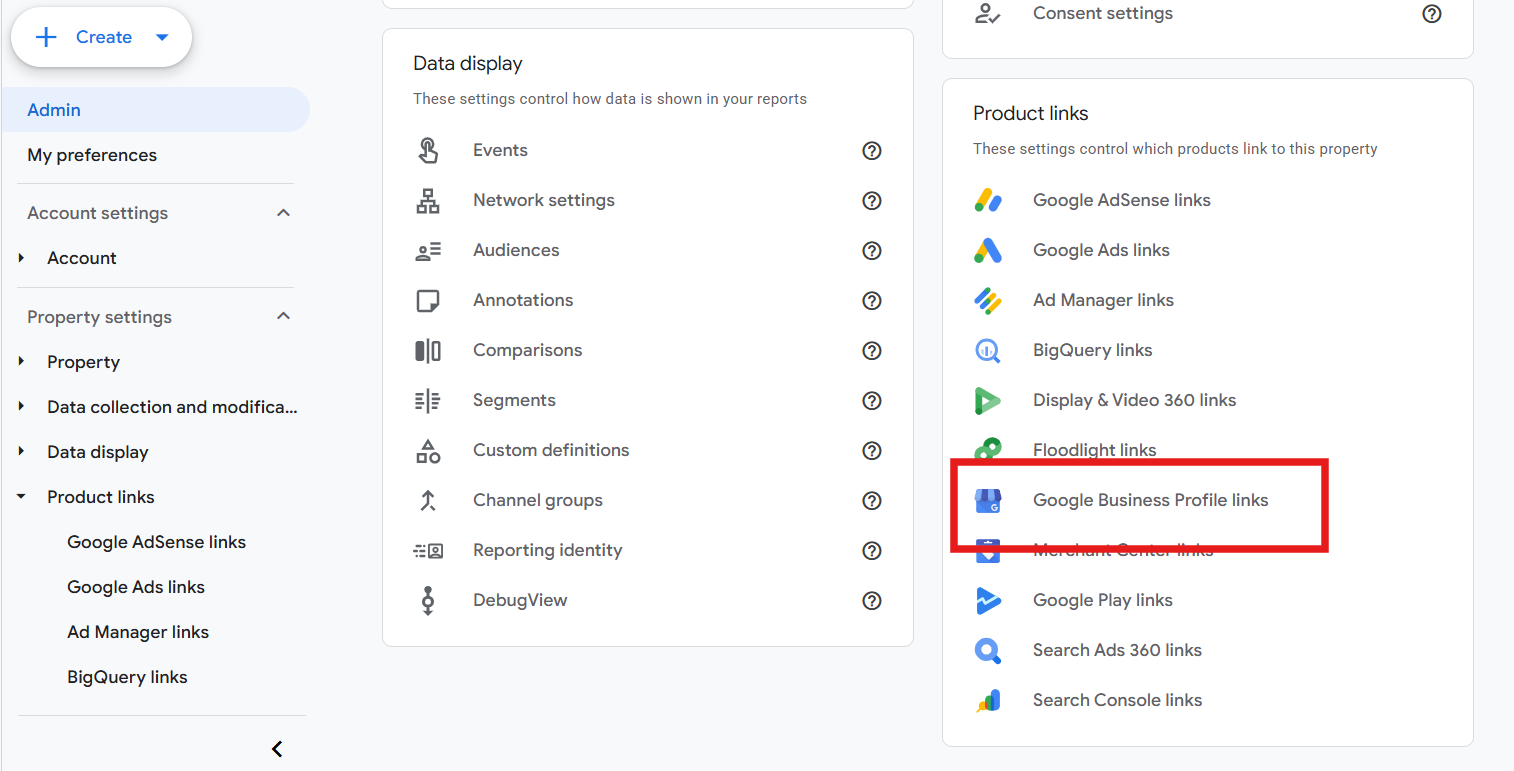
Log into your GA4 property and click Admin (the gear-style navigation at the bottom of the left menu). Under Property settings, expand Product links.
You'll see the standard link options — Google AdSense links, Google Ads links, Ad Manager links, BigQuery links — but the full Product links panel on the right side of the Admin screen shows more. Look in that right-hand Product links column and find Google Business Profile links in the list (it sits alongside Display & Video 360, Floodlight, Merchant Center, Google Play, Search Ads 360, and Search Console links).
Click Google Business Profile links.
Step 2: Click "Link" to Start a New Connection
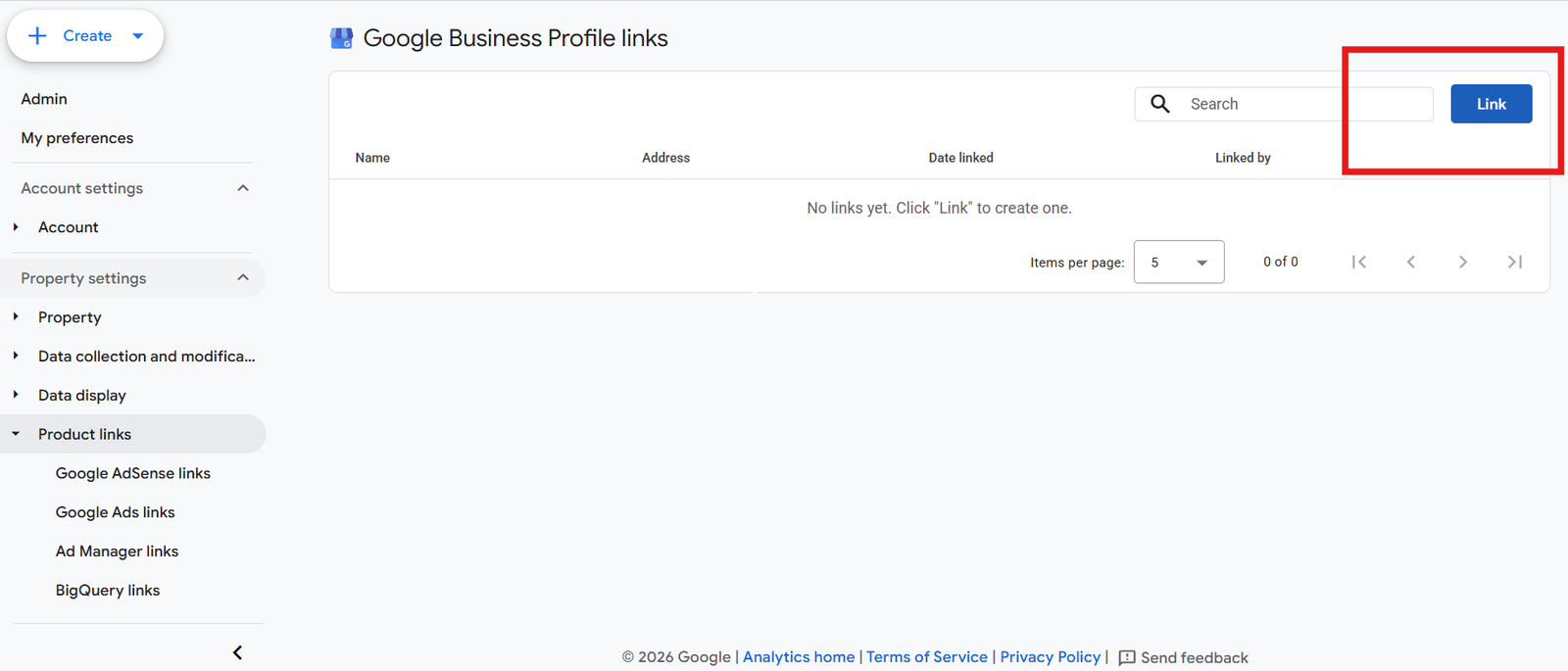
You'll land on the Google Business Profile links page. If you've never linked a profile before, it will say "No links yet. Click 'Link' to create one."
In the top-right corner of that panel, click the blue Link button.
Step 3: Choose Your Google Business Profile Listing
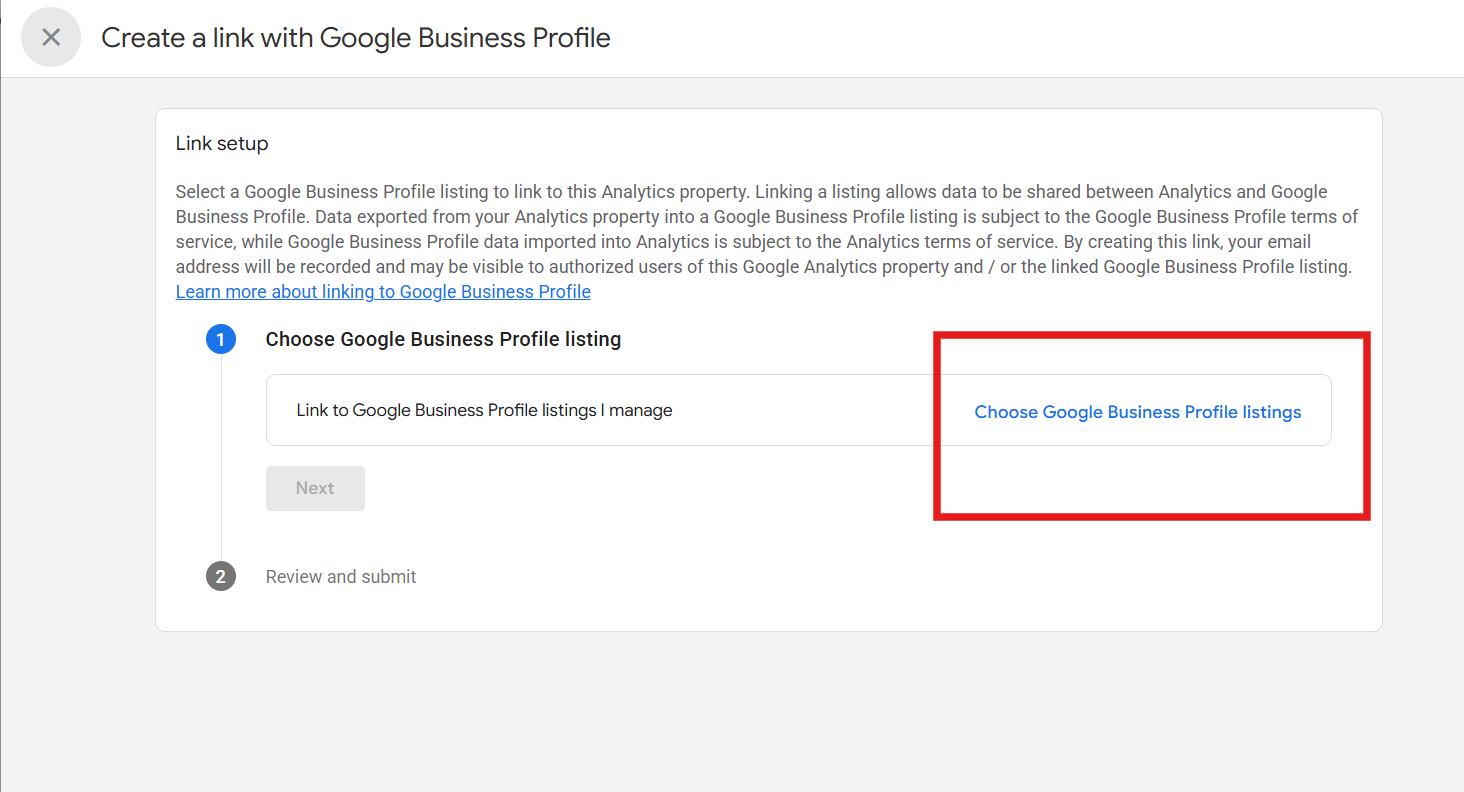
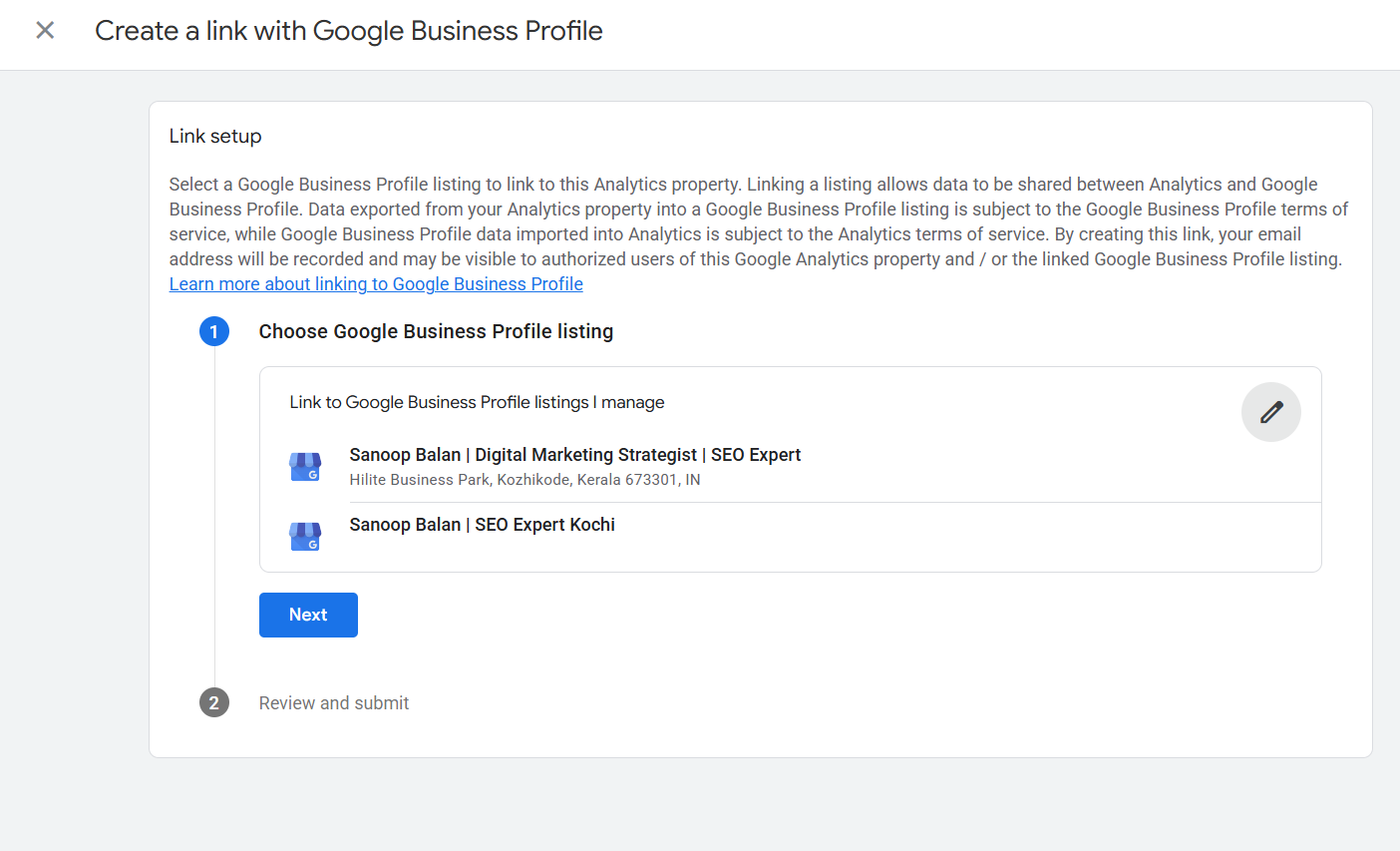
The Create a link with Google Business Profile wizard opens, starting with Link setup.
You'll see an explanation from Google worth reading once: linking a listing allows data to be shared between Analytics and Google Business Profile. Data exported from Analytics into a Business Profile listing is subject to the Business Profile terms of service, while Business Profile data imported into Analytics is subject to the Analytics terms of service. Your email address is recorded and may be visible to authorized users of the property and the linked listing.
Under Choose Google Business Profile listing, you'll see a row labeled "Link to Google Business Profile listings I manage" with a blue Choose Google Business Profile listings option on the right. Click it.
Step 4: Select the Listing(s) You Want to Link
A panel appears showing every Business Profile listing your account manages. In my case, two listings show up:
- Sanoop Balan | Digital Marketing Strategist | SEO Expert (Hilite Business Park, Kozhikode, Kerala 673301, IN)
- Sanoop Balan | SEO Expert Kochi
Tick the listing (or listings) you want to connect to this GA4 property. You can select more than one if you manage multiple locations and want them all reporting into the same property.
Once your selection looks right, click Next.
Step 5: Review and Submit
The wizard moves to Review and submit (step 2 in the setup flow). Confirm that the listing details — name and address — match the profile you intended to link. This is your last checkpoint before the connection is created, so make sure you're linking the correct location to the correct property.
When everything checks out, submit the link.
Step 6: Confirm the Link Was Created
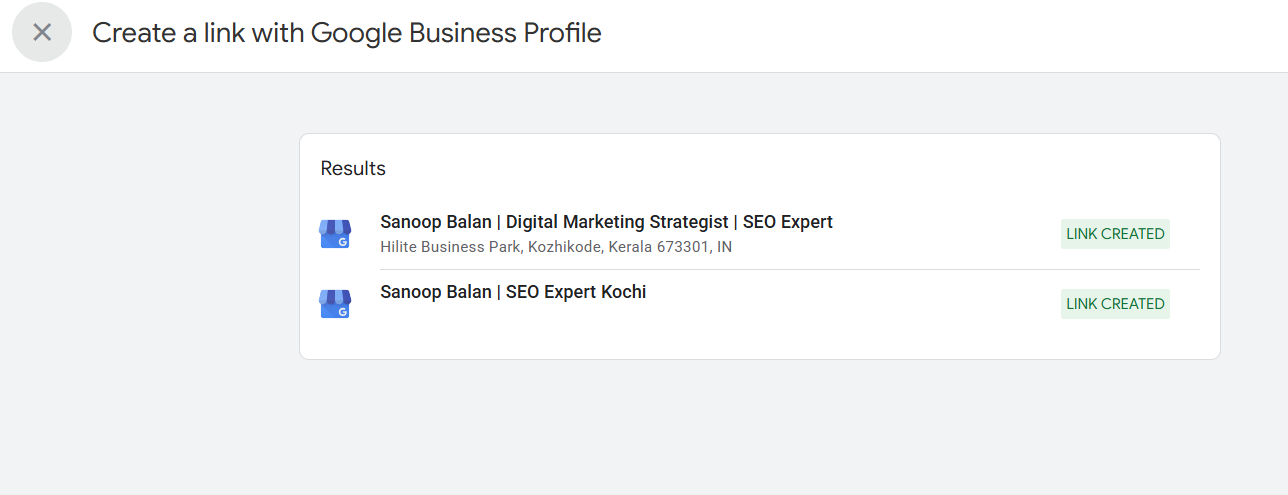
After submitting, you'll see a Results screen. Each listing you selected will display a green LINK CREATED badge next to it:
- Sanoop Balan | Digital Marketing Strategist | SEO Expert — LINK CREATED
- Sanoop Balan | SEO Expert Kochi — LINK CREATED
That green badge is your confirmation. The connection is live.
Step 7: Verify in the Links Table
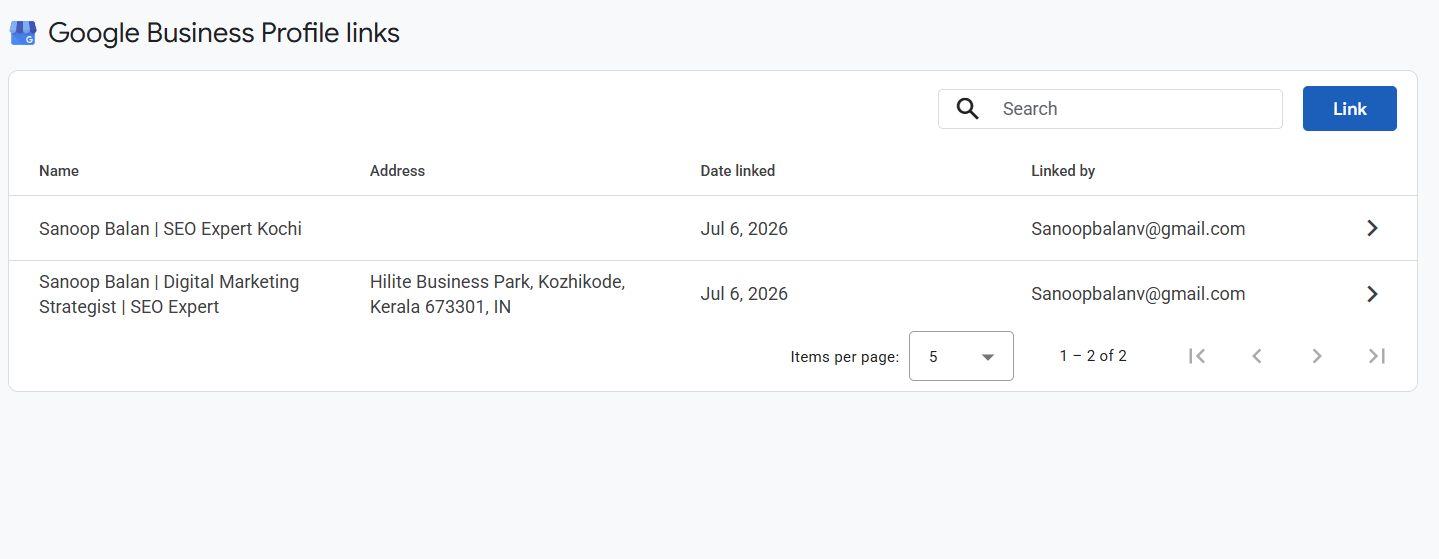
Back on the Google Business Profile links page, your newly connected listings now populate the table with four columns:
- Name — the listing name
- Address — the physical address on file (may be blank for service-area businesses without a public address)
- Date linked — the date the connection was created
- Linked by — the Google account that created the link
You should see your listings here with today's date and your email in the "Linked by" column. If they're showing, you're done with the setup.
How Long Until You See Data?
Don't panic if your GA4 Business Profile report looks empty right after linking. Data isn't instant.
Give it 24 to 48 hours for interactions to begin populating. It can take a little longer for the historical backfill and for the reports to stabilize. If nothing appears after a couple of days, re-check that the link still shows in the Product links table and that the account still has manager access to the profile — access changes on the GBP side can quietly break the connection.
Where to Find Your GBP Data in GA4
Once data is flowing, head to the Business Profile section in your GA4 reports (in the left navigation under Reports, you'll find a Business Profile group with an Overview).
The Business Profile Overview surfaces your headline metrics right at the top:
- Business profile interactions — the total of all profile actions
- Business profile calls — how many people called you from the profile
- Business profile website clicks — clicks through to your site
- Business profile directions — direction requests
Below those, you'll find trend charts and additional cards like Business profile messages over time and Business profile bookings over time, so you can watch each interaction type move across your reporting period.
Making the Data Actually Useful
Linking is the easy part. The value comes from what you do next. A few things worth doing once the data lands:
- Watch the ratio of directions to website clicks. If direction requests dominate but website clicks are low, that's normal for many local service businesses — but it's also a signal about where your customers want to engage. It tells you whether to prioritize your Maps presence or drive more traffic to your site.
- Trend interactions against your GBP optimization work. If you're publishing posts, adding photos, refining categories, or earning reviews, line those activities up against your interaction trend. This is how you prove local SEO is working rather than just assuming it.
- Correlate profile clicks with on-site behavior. Because website clicks now enter GA4 as sessions, you can follow what those visitors actually do once they arrive — do they convert, or bounce? That closes the loop between local discovery and website performance.
- Compare locations if you linked multiple listings. With more than one profile connected, you can benchmark locations against each other and spot which needs attention.
Common Issues and Fixes
Your listing doesn't appear in the selection step. Almost always an access problem. The Google account you're signed into must have manager (or owner) access to the Business Profile. Confirm access in the Business Profile Manager, then retry.
The "Link" button is greyed out or missing. You likely don't have Editor or Administrator rights on the GA4 property. Ask whoever administers the property to grant the right role or to create the link for you.
Link created but no data after 48 hours. Verify the link still shows in the Product links table. If it silently disappeared, an access change on either side may have severed it — re-establish access and re-link.
Multiple listings, wrong one linked. Just remove the incorrect link from the Product links table and repeat the process, selecting the correct listing at Step 4.
Wrapping Up
Connecting your Google Business Profile to GA4 is a genuinely quick task — a handful of clicks inside Admin — but it removes a real blind spot. Instead of treating your local presence and your website as two separate stories, you get one continuous view of how customers find you and what they do next.
Set the link up once, give it a day or two to populate, and then start using those profile interactions the way you'd use any other metric: to make decisions. For any local business, that unified view is one of the most useful things you can switch on in an afternoon.