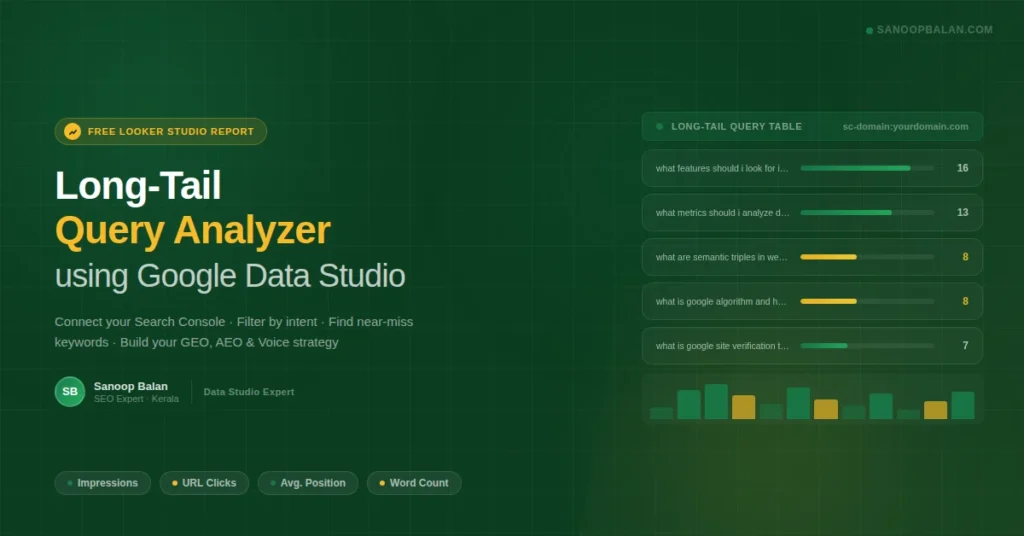
How to Unlock Hidden SEO Opportunities with the Long-Tail Query Analyzer Report using Google Data Studio
Growing organic traffic means looking beyond your top keywords. The real gains — the ones your competitors miss — come from long-tail queries buried in your Search Console data. These phrases reveal exactly what users are asking, where your pages are close to breaking through, and which content gaps are leaving clicks on the table. Your Search Console data loads directly in your browser. This report never stores, shares, or retains your data. The Long-Tail Query Analyzer is a free Looker Studio (Data Studio) report that connects to your Google Search Console and turns raw impression data into a prioritized SEO action plan. This guide walks you through every feature — including how to decode CTR, use the word count filter, and align your findings with GEO, AEO, and voice search ranking signals. How to Connect Your Google Search Console Data Setup takes under two minutes. No technical skills required — just GSC access. 1 Connect your data source Click the data source dropdown at the top left of the report. Select Add data → Google Search Console and authorize access with your Google account. 2 Choose your property Pick your specific domain (e.g., sc-domain:yourdomain.com) or URL prefix from the list. Each property shows its own dataset. 3 Set your date range Use the date picker (top right). Pro tip: Use 90 days for a more reliable dataset. A 7-day window can produce noisy impression counts, especially for low-volume long-tail queries. 4 Read the table by Word Count Queries are sorted by Word Count by default. Longer queries signal more specific user intent — and less competition. Start your analysis at the top of the list. How to Filter by Search Intent and Uncover Long-Tail Keyword Opportunities The report’s query filter is where the real SEO intelligence lives. By typing a single word into the filter box, you can instantly segment your entire keyword universe by intent type — a technique used by every experienced SEO professional to find untapped content opportunities. Informational Intent what how why when who Blog posts, FAQs, how-to guides, and featured snippet targets. High value for AI Overviews and voice answers. Commercial / Comparison Intent best top vs review Landing pages, comparison guides, and buying guides. Signals users who are close to a decision. Clear the filter and type a new intent keyword to switch between strategy modes instantly. Using the Word Count Filter to Find Voice Search and AI Overview Targets The custom Query Word Count metric is one of the most powerful tools in this report for SEO professionals targeting modern search formats — including voice queries, conversational AI results, and generative engine responses (GEO). Queries with 8 or more words are almost always conversational, low-competition, and perfectly structured for direct-answer features. ≥5 5+ words — Long-tail sweet spot Lower competition, higher purchase or learning intent. Use the slider to filter to this range and identify cluster topics for pillar pages. ≥10 10+ words — Voice & AI targets These are conversational queries. Answer them in a single direct paragraph at the top of the relevant page. Prime candidates for AI Overviews, featured snippets, and voice assistant results. How to use the Word Count slider Drag the slider on the dashboard to your minimum word count threshold. The table updates instantly — only showing queries that meet your exact length criteria. To make a permanent view (for example, always showing 10+ word queries), apply a permanent filter via Setup → Filters → Include “Query Word Count” ≥ 10. Decoding CTR and Average Position: What the Data Is Really Telling You High impressions with zero clicks is one of the most misdiagnosed problems in SEO. Before drawing conclusions, you need to read CTR in the context of your Average Position. Here is the benchmark framework that professional SEOs use: Avg. Position Typical CTR Diagnosis Priority 1 – 3 15 – 35% Ranking well. Optimize title tag and meta description to increase CTR further. Optimize 4 – 10 3 – 15% Good ranking. Minor content improvements can push you into the top 3. Improve 11 – 20 0.5 – 3% Near-miss zone. Best ROI in your entire keyword set — small effort, significant ranking jump. High Priority 21 – 50+ ~0% Deep pages. Impressions here are topical relevance signals, not a CTR problem. Long-term Why 0 clicks at position 40+ is completely normal: Users rarely reach page 4 or 5 of search results. If you have high impressions, 0 clicks, and an Average Position of 40+, this is not a meta description problem — it is a ranking problem. The query is topically relevant to your site, but the page needs stronger authority, better on-page optimization, or more targeted internal linking to reach page one. Where to focus immediately: Filter for queries with Avg. Position between 11–20 and more than 5 impressions. These are your near-miss keywords — a focused content update is often enough to move them onto page one and start generating real clicks. How to Turn Your GSC Data into an SEO Action Plan (GEO, AEO, and Voice) Exporting your data is the first move. Use the three-dot menu on any table widget to Export to Google Sheets, then build your prioritization list from the segments below. 🎯 Near-miss keywords (Position 11–20, Impressions > 5) GEO AEO Your lowest-hanging fruit. Update the existing ranking page: add the exact query phrase into an H2 heading, expand the content with a direct answer paragraph, add FAQ schema, and strengthen internal linking pointing to that page. Pages in this zone frequently appear in AI-generated overviews once they clear the page-one threshold. 📄 Deep rankings (Position 40+, High Impressions, 0 Clicks) GEO The current page is too thin or too off-topic to rank for this query. Create a new, dedicated page targeting the exact query. Include the phrase in your H1 and first paragraph, use FAQ schema, add clear headers for each sub-question, and build internal links from relevant existing content to pass authority. 🎙️